

Want to watch movies and shows on a bigger screen? FlixFox for PC lets you use the Android app on a Windows computer. You can watch movies, web series, anime, and TV shows without using your phone.
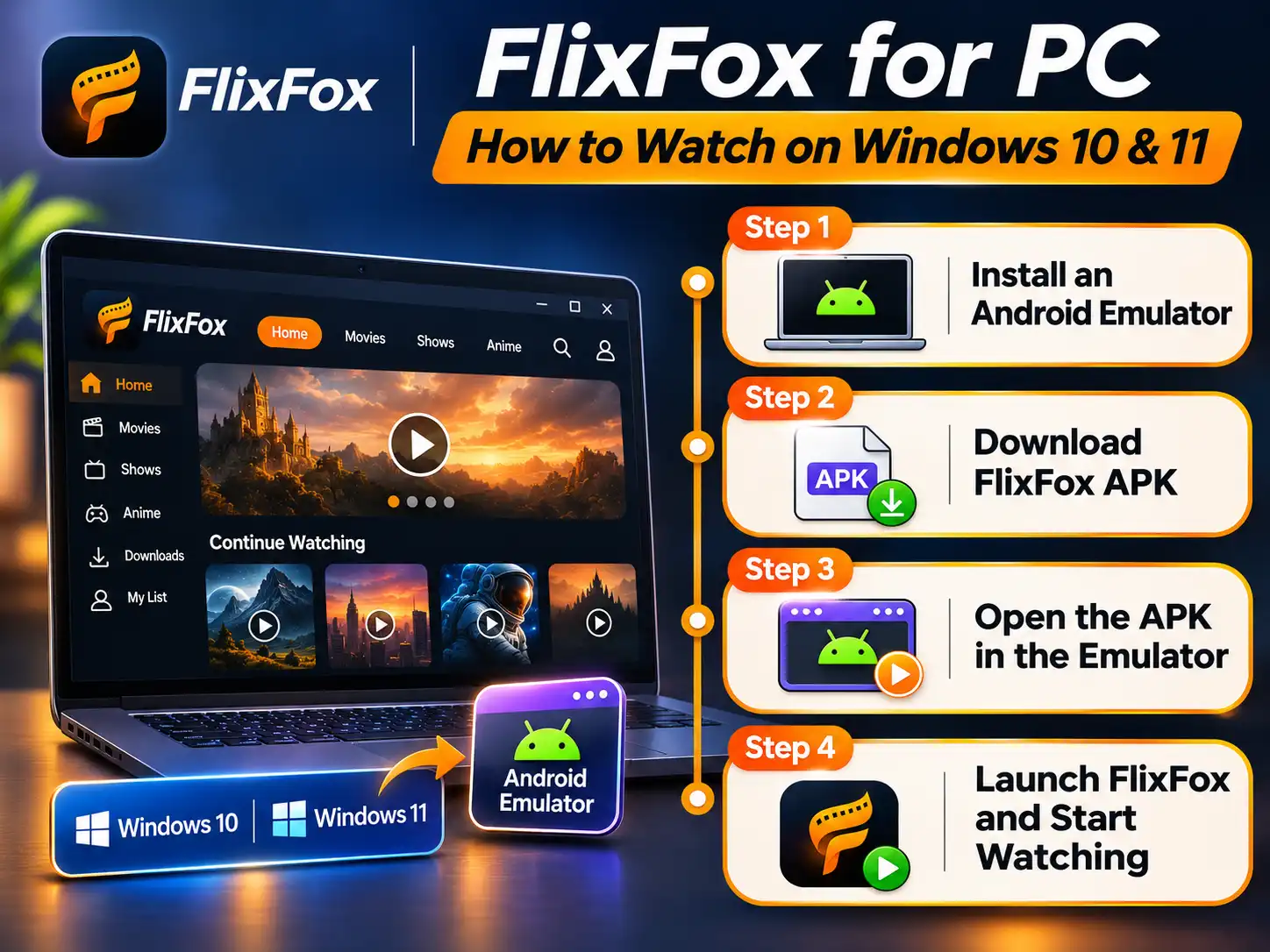
FlixFox has no Windows app. You need an Android emulator to run it on Windows 10 or 11. You can use BlueStacks, LDPlayer, or NoxPlayer.
This guide covers PC needs, emulator options, safety checks, and setup steps. You will also learn how to fix common errors and improve video playback.
Understanding How FlixFox Works on a Computer
FlixFox is made for Android devices. An emulator lets you run Android apps on a Windows PC.
Why FlixFox Runs Through an Android Environment
Windows and Android run apps in different ways. An emulator creates an Android system on your PC. You can install and open FlixFox inside it.
The app does not run on Windows by itself. Its speed depends on your PC and emulator settings.
Is There a FlixFox .exe or Native Windows Version?
FlixFox has no Windows version. It comes as an Android APK, not a Windows .exe file.
The listed version is FlixFox APK v2.1.3 (34.5 MB). It works on Android 6.0 and higher.
Avoid sites that offer a "FlixFox.exe" file unless you can check its official source.
PC Requirements for Running FlixFox
Before you download FlixFox for PC, check your system. Each emulator has its own hardware needs.
| System Component | What to Check |
|---|---|
| Operating System | Windows 10 or Windows 11 |
| Processor | Supported Intel or AMD processor |
| RAM | Enough memory for Windows and the emulator |
| Storage | Space for the emulator, APK, and app files |
| Graphics | Supported graphics card and updated drivers |
| Virtualization | Intel VT-x or AMD-V, if needed |
| Internet | Stable connection for streaming |
Checking Your Windows Version and Hardware
Open Windows Settings and select System. Then, click About to see your Windows version, CPU, and RAM.
Check your free storage space as well. The emulator needs room for its files and apps.
Understanding Minimum vs Recommended PC Specifications
Minimum requirements show what you need to run an emulator. The recommended specs help you judge how well it may work.
For example, BlueStacks 5 needs at least 4 GB RAM. It suggests 8 GB or more for better use.
Check the system needs on your emulator's official website.
What Hardware Virtualization Does
Virtualization helps your PC run another system. It can make an emulator faster and more stable.
You may see this setting as Intel VT-x, AMD-V, or SVM Mode.
Finding an Android Emulator That Fits Your PC
BlueStacks, LDPlayer, and NoxPlayer are common Android emulators. Each has its own tools and system needs.
Using FlixFox With BlueStacks
BlueStacks lets you install Android APK files. You can also change its RAM, graphics, and screen settings.
It may suit users who want a simple setup. Check its Android version before adding FlixFox.
Running FlixFox Through LDPlayer
LDPlayer gives you control over CPU, RAM, and screen settings. It also lets you install Android APK files.
This may suit users who want more control over how the emulator runs.
NoxPlayer and Other Android Emulator Options
NoxPlayer is another tool for running Android apps on Windows. It lets you change memory, CPU, and screen settings.
Check that your PC meets its needs before you install FlixFox.
Comparing Android Emulators for FlixFox
| Emulator | Key Features | Recommended For |
|---|---|---|
| BlueStacks | APK setup and speed settings | Users who want a simple setup |
| LDPlayer | CPU, RAM, and graphics controls | Users who want more control |
| NoxPlayer | Android app support and custom settings | Users who want another option |
No emulator is right for every PC. Choose one that fits your system and supports the app.
Safety and Privacy Checks Before Installing FlixFox
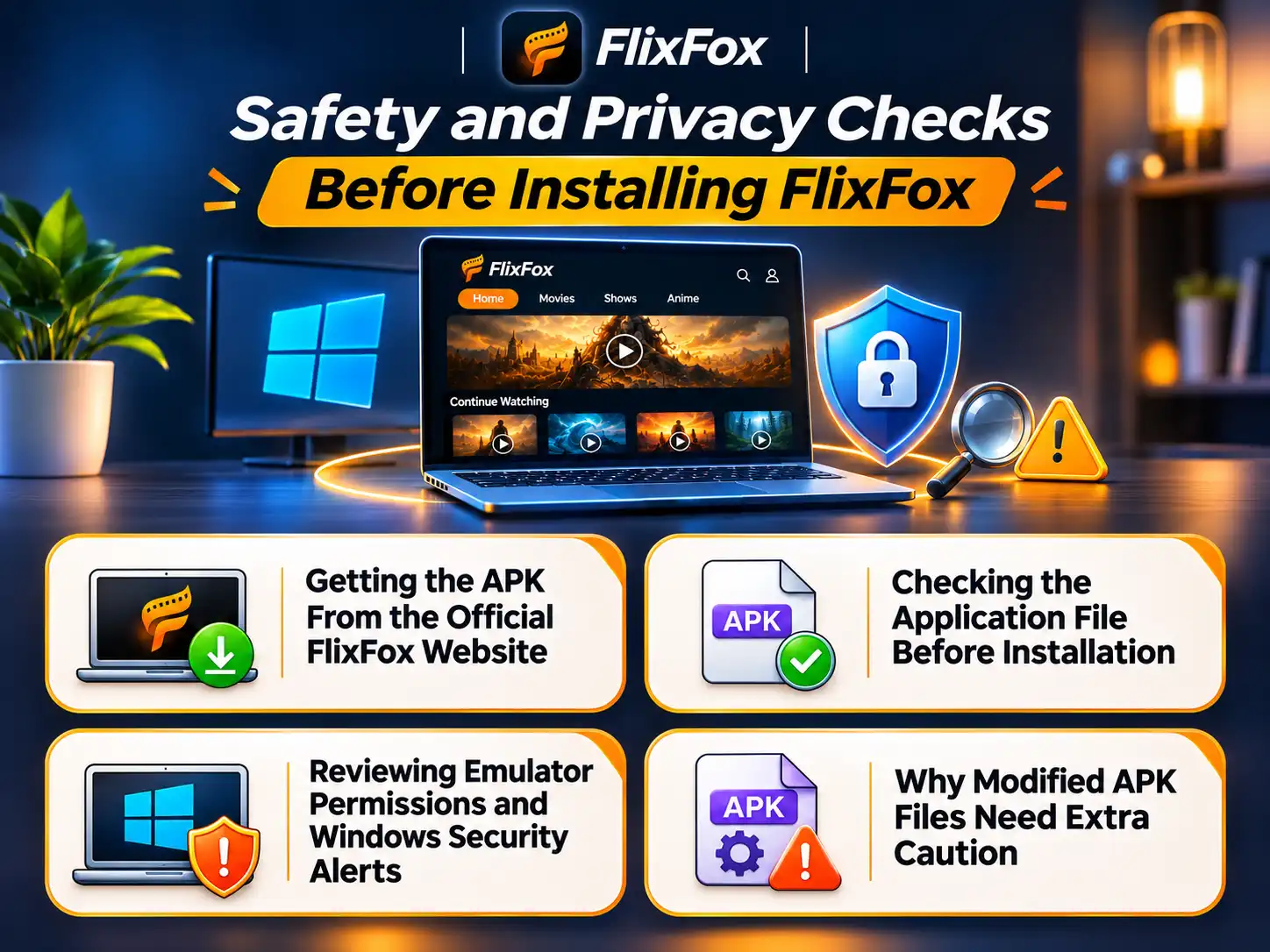
Check the APK source and file details before you install FlixFox. These steps can help you avoid unwanted files.
Getting the APK from the Official FlixFox Website
Use the download button on the official FlixFox website. Avoid unknown sites, pop-up ads, and links you do not trust.
Checking the Application File Before Installation
Check the APK name, size, and version. Scan the file with a trusted security tool before you open it.
A clean scan is useful, but it does not mean a file is free from all risks.
Reviewing Emulator Permissions and Windows Security Alerts
Read each permission request before you accept it. Keep Windows security tools turned on during setup.
Why Modified APK Files Need Extra Caution
Some APK files have changes made by other people. These changes may affect the app or put your data at risk.
Avoid unknown cracked or premium-unlocked APK files.
How to Download and Install FlixFox for PC
You can install FlixFox on Windows through an Android emulator. Follow these six steps to get started.
Step 1 – Download an Emulator From Its Official Website
Choose BlueStacks, LDPlayer, or another emulator that works with your PC.
Visit its official website and get the Windows setup file. Do not use unknown download sites.
Step 2 – Complete the Emulator Setup on Windows
Open the emulator setup file and follow the steps on your screen. Choose a folder with enough free space. Once the setup is done, open the emulator and select an Android version that supports FlixFox.
Check if Hardware Virtualization Is Enabled
Hardware virtualization helps your PC run Android apps through an emulator. Intel calls this feature VT-x, while AMD uses AMD-V. Turning it on can help the emulator run faster and reduce lag.
First, check whether it is already enabled:
- Press Ctrl + Shift + Esc to open Task Manager.
- Click the Performance tab.
- Select CPU from the menu.
- Look for Virtualization in the details.
- If it says Enabled, you can continue setting up the emulator.
If it says Disabled, follow these steps.
How to Enable VT-x or AMD-V in BIOS/UEFI
Step 1 – Restart Your Windows Computer
Save your work and close all open programs. On Windows 11, open Settings > System > Recovery. On Windows 10, go to Settings > Update & Security > Recovery.
Find Advanced startup and click Restart now.
Step 2 – Enter BIOS/UEFI Settings
After your PC restarts, a blue screen will appear. Select Troubleshoot > Advanced options > UEFI Firmware Settings > Restart.
Your computer will open its BIOS/UEFI menu.
If this option is not shown, restart your PC and use its BIOS access key during startup. Common keys include F2, Delete, Esc, and F10. The correct key depends on your PC brand.
Step 3 – Find the Virtualization Setting
Inside BIOS/UEFI, look for a menu such as Advanced, CPU Configuration, or Security.
The setting may have one of these names:
- Intel Virtualization Technology or Intel VT-x
- AMD-V or SVM Mode
- Virtualization Technology
The menu names differ by PC maker. Use your PC manufacturer's guide if you cannot find the setting.
Step 4 – Enable Virtualization
Select the virtualization option and change it from Disabled to Enabled.
Do not change other BIOS settings. Changes to the wrong options may stop Windows from starting as expected.
Step 5 – Save Changes and Restart
Open Save & Exit and confirm your changes. On many PCs, you can press F10 to save and exit.
Your computer will restart and load Windows.
Step 6 – Confirm Virtualization Is Working
Open Task Manager again and go to Performance > CPU.
Check that the status now says Virtualization: Enabled. If it does, reopen your Android emulator.
You can now set its RAM, CPU, and storage limits to match your PC. Leave enough memory for Windows and other programs.
If virtualization is still disabled or the option is missing, check your PC maker's support guide before making more changes.
Step 3 – Download FlixFox APK to Your Computer
Open the official FlixFox website and download the APK file.
Save it to your Downloads folder or another place you can find. Check the app version before you install it.
Step 4 – Import the APK Into the Android Emulator
Open the emulator and find the Install APK option. Some emulators also let you drag the APK into their window.
Choose the file you saved and let the setup finish.
Step 5 – Finish Installation and Open FlixFox
Find the FlixFox icon on the emulator's home screen. Click it to open FlixFox for PC.
You can sign in with Email, Google, WhatsApp, or your phone number if needed.
Step 6 – Check App Navigation and Video Playback
Open the app and check if its menus work with your mouse.
Play a video to test the picture, sound, and screen size. If you face an error, check the fixes later in this guide.
Making the Most of FlixFox on a Larger Screen
FlixFox for Windows lets you watch videos in full-screen or windowed mode. You can use PC speakers, headphones, or an external monitor for a better viewing setup. Windowed mode also lets you switch between FlixFox and other Windows apps.
You can use the same setup on a Windows laptop. Keep in mind that an emulator may use more battery power. Close apps you do not need and use a charger during long viewing sessions.
Keyboard Mapping and Controller Setup
Most Android emulators have a built-in tool that lets you assign keyboard keys to on-screen controls. For example, BlueStacks has a game controls feature that lets you map keys to touch actions. You can try setting the arrow keys to move between menus and the spacebar to select or pause a video.
You may also connect a supported Xbox or PlayStation controller to your PC and set up its buttons through the emulator, if it supports gamepads. Test each key or button in FlixFox, as some app controls may not respond to custom mappings.
FlixFox Playback Quality and Premium Access on PC
Video quality depends on the title, your PC settings, and your internet speed.
Video Quality and Full HD 1080p Playback With FlixFox Premium
FlixFox Premium offers Full HD 1080p playback for supported videos.
Check the video settings in the app to see which quality levels you can use. A higher screen setting will not improve a low-quality video.
Use a stable internet connection to help videos play without stops.
Using One Premium Account Across Supported Devices
FlixFox Premium lets you use one account on up to 3 phones and 2 TVs. When using FlixFox on a PC through an Android emulator, it usually counts as one of the phone slots.
Check your account details to see how many devices you can add. An emulator may not count in the same way as a phone or TV.
Improving FlixFox for PC Performance
A few changes to your PC and emulator may help the app run better.
Setting RAM and CPU Limits in the Emulator
Choose RAM and CPU settings that match your PC. Leave enough memory for Windows to run other tasks.
Choosing Suitable Graphics and Screen Settings
Use a screen size and quality level your PC can handle. If the app slows down, try a lower setting or a different graphics mode.
Keeping Windows and Graphics Drivers Updated
Old graphics drivers can cause screen issues. Check for new driver updates and use a Windows version that still gets security updates.
Managing Apps That Use Too Many PC Resources
Close games, unused browser tabs, and other large programs. This gives the emulator more room to run.
Using SSD Storage for Faster App Loading
An SSD can help the emulator open and load files faster. Use one if your PC has enough free space.
Common FlixFox for PC Errors and Their Solutions
You may face errors while using FlixFox on Windows. Here are some common issues and ways to fix them.
The Emulator Will Not Start
Check that your PC meets the emulator's system needs. Restart Windows and try again.
If you see a virtualization error, check whether the setting is turned on.
FlixFox Shows an App Not Installed Error
This error may appear if the APK is damaged or does not work with the emulator's Android version.
Get the file again from the official website. Check that your emulator can run the APK.
The App Opens to a Black Screen
Restart the emulator and check for graphics driver updates.
If the screen stays black, try another graphics mode in the emulator settings.
Videos Buffer or Stop During Playback
Check your internet connection and lower the video quality if the app allows it.
Slow internet or high network use can stop videos from loading. Try another title to see if the issue remains.
Audio and Video Are Out of Sync
Pause the video and play it again. Close apps that use a lot of memory or CPU power.
If the sound still does not match the video, restart the emulator.
FlixFox Closes or Freezes Without Warning
Check your free RAM and storage space. Close unused apps and look for emulator updates.
If FlixFox still closes, the APK may not work with your emulator setup.
Managing FlixFox Files and App Data on Windows
FlixFox saves its Android app files inside the emulator.
Where Offline Videos Are Stored in an Emulator
Offline videos may stay in the app's own storage space. You may not see them as normal video files in Windows.
Clearing App Cache Without Removing FlixFox
Open Android Settings in the emulator and select Apps. Find FlixFox and open its storage settings.
Select Clear Cache to remove temporary files. Do not choose Clear Data unless you want to reset saved app details.
What Happens When You Uninstall the Emulator
If you remove the emulator, you may also lose its apps and saved files.
Check for backup options before you uninstall it.
FlixFox for PC: Advantages and Limitations
FlixFox gives you a larger screen on Windows, but an emulator has some limits.
| Advantages | Limitations |
|---|---|
| Larger screen for movies and shows | Needs an Android emulator |
| Mouse and keyboard controls | Some actions may need touch input |
| External sound and display support | Speed depends on your PC |
| Full-screen and windowed viewing | Uses extra RAM and storage |
| Watch without holding your phone | Some APK versions may not work |
FlixFox for PC: Frequently Asked Questions
Can I use FlixFox for PC on a Mac?
FlixFox has no native Mac app. Some Android emulators work on macOS, but they may not support FlixFox. Check your Mac's hardware and the emulator's app support before setup.
Is there a FlixFox .exe file for PC?
No, FlixFox is an Android APK, so there is no official .exe file for Windows.
Is FlixFox for PC free to use?
Yes. You can use the free FlixFox app through a supported Android emulator. FlixFox Premium is optional and adds Full HD 1080p playback for supported titles.
Can I install FlixFox directly on Windows without an emulator?
No, Windows requires an Android emulator to run APK files.
Does FlixFox work on Windows 11?
Yes, FlixFox works on Windows 11 through a compatible Android emulator, such as BlueStacks or LDPlayer. The official Windows Subsystem for Android (WSA) has been discontinued and is no longer recommended.
Does FlixFox support more than one account on a PC?
FlixFox lets users sign in to an account. However, support for using more than one account in the same emulator is not confirmed. Check the app's account rules before you use separate profiles.
Get FlixFox Ready for Your Windows Computer
FlixFox for PC lets you watch Android movies and shows on a larger screen. Choose an emulator that works with your computer and check the system needs before setup. Follow the steps in this guide to install the APK and test video playback.
Ready to watch FlixFox on Windows? Visit the official FlixFox website, get the Android APK, and follow the PC setup guide to start watching today.